
Quick answer: To make a video on Higgsfield, sign in, choose text-to-video or image-to-video, pick a video model, write a short prompt that describes the subject, action and camera movement, choose a camera preset and settings, then generate, review and re-roll until you like it. Export the clip and edit or combine shots if you need a longer video.
Higgsfield is a popular AI creative platform that puts many image and video models in one place. This tutorial shows how to make your first video, which workflow suits which goal, how to write better prompts, how credits work and the mistakes that waste money. If you are still comparing tools, read our list of the best free AI video generators first, and browse more tools in our Technology section.
Last updated: 7 October 2026.
In This Guide
- What is Higgsfield AI?
- What you need before you start
- Step-by-step: make your first video
- Five ways to make a video on Higgsfield
- Which model should you choose?
- How to write better prompts (with examples)
- Add voice, music and sound
- Edit, stitch and export
- Credits, pricing and the free plan
- Common mistakes and fixes
- Use AI video responsibly
- Higgsfield alternatives
- FAQs
1. What Is Higgsfield AI?
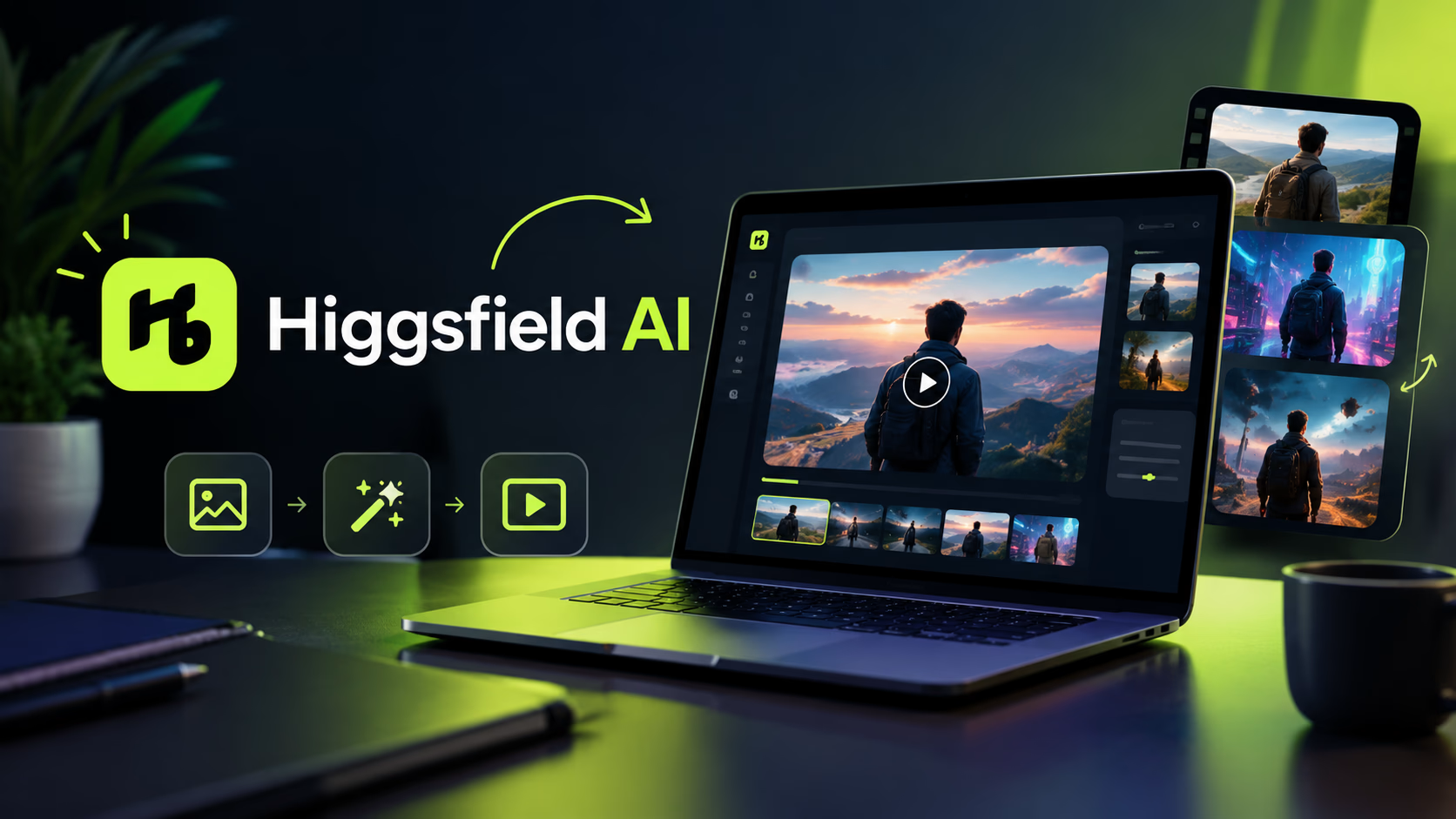
Higgsfield is an AI creative suite for making images and short videos from text prompts or reference images. Instead of relying on a single model, it gives access to a catalogue of more than 50 models, including video models such as Kling, Google Veo, Seedance, Sora, WAN and Hailuo, and image models such as Nano Banana Pro, Flux Kontext and GPT Image. It is best suited to short, cinematic, social-first clips rather than long films.
It is known for tools like camera motion presets, Cinema Studio for planning cinematic shots, product-ad tools such as Draw-to-Video / Ads, and an AI agent (Supercomputer) that can run a project from a chat. Model names and features change often, so expect some menus to look different from this guide.
2. What You Need Before You Start
- A Higgsfield account (the free tier lets you test the interface with limited models).
- An idea for one short scene. Start with a single 5 to 10 second shot, not a whole story.
- Optional: a clear reference image (a character, product or location), especially for image-to-video.
- Credits. Generations use credits, so plan a few attempts per shot.
- A video editor (CapCut, DaVinci Resolve, Premiere or similar) if you want to join several clips.
3. Step-by-Step: Make Your First Video on Higgsfield
Step 1: Sign up and open the video tool
Create an account on the Higgsfield website and open the video generation section from the dashboard. Check what your plan includes, because free and paid plans differ in available models, speed and commercial rights.
Step 2: Pick your workflow
Use image-to-video when you need a specific face, product or look to stay consistent. Use text-to-video for landscapes, abstract scenes and quick experiments when you have no reference image.
Step 3: Choose a model
Select a video model that matches your goal. As a rule of thumb, pick a faster, cheaper model for tests and a higher-quality one for the final version. Higgsfield may offer an automatic option that picks a model for you.
Step 4: Upload a reference image (if using image-to-video)
Use a sharp, well-lit image with the subject fully visible. For products, a clean photo on a plain background works best. You can also generate the starting image in Higgsfield first, then animate it.
Step 5: Write your prompt
Keep it short and specific. Describe who or what is in the scene, what they do, where they are, the lighting and mood, and how the camera moves. See Section 6 for a formula and examples.
Step 6: Choose camera motion and settings
Higgsfield offers visual camera motion presets, such as push in, orbit and tracking shots, so you can pick a move instead of describing it. Then choose duration, resolution and aspect ratio (9:16 for Reels, TikTok and Shorts, 16:9 for YouTube, 1:1 for feeds).
Step 7: Check the credit cost and generate
Review the credit cost shown before you confirm. Higher resolution, longer clips and premium models cost more. Start with a lower setting to test the idea.
Step 8: Review and re-roll
AI video is rarely perfect on the first try. Check the face, hands, text, motion and any product logo. If something is off, change one thing at a time (prompt, preset or model) and generate again.
Step 9: Export
Download the best take in the format your platform needs. Keep the original files in case you want to edit or upscale later.
4. Five Ways to Make a Video on Higgsfield
| Method | Best for | Tip |
| Text-to-video | Landscapes, abstract scenes, quick ideas | Be specific about subject, action and camera |
| Image-to-video | Consistent characters, products, portraits | Use a clean, sharp reference image |
| Product ads (Draw-to-Video / Ads tools) | Placing a product into a generated scene | Start from a clean product photo and expect to retry |
| Cinema Studio (hero frame, then animate) | Cinematic multi-shot sequences | Build a strong still first, then animate it shot by shot |
| Supercomputer agent (chat) | Running a whole project from one brief | Read the credit estimate before approving each step |
5. Which Model Should You Choose?
Model availability and quality change quickly, so test a few on the same prompt. These are general patterns from the models Higgsfield has listed:
- Veo: often chosen when you want video and sound generated together, which cuts an extra audio step.
- Kling: a popular all-rounder for realistic motion, and generally a cost-effective option for tests.
- Seedance: often used for cinematic and higher-resolution clips, usually at a higher credit cost.
- Sora, WAN and Hailuo: useful alternatives when a prompt does not work well in your main model.
Practical approach: test your idea on a cheaper model first, then render the final shot on a premium model.
6. How to Write Better Prompts (With Examples)
Prompt formula: Subject + action + setting + lighting/mood + camera movement + style.
Keep prompts focused. Many guides suggest staying under about 100 words, since overloaded prompts confuse models.
Example prompts you can copy
- Travel: “A traveler walks along a sunlit stone street in an old coastal town, golden hour, warm light, slow tracking shot from behind, cinematic, shallow depth of field.”
- Product: “A glass perfume bottle on a marble surface, soft light sweeping across it, slow orbit around the bottle, clean luxury commercial style.”
- Sports: “A footballer strikes a ball in a floodlit stadium at night, slow motion, low-angle camera, crowd blurred in the background.”
- Nature: “Ocean waves roll onto a rocky shore at sunrise, mist over the water, wide drone shot slowly pushing forward.”
- Food: “Steam rises from a fresh bowl of noodles on a wooden table, close-up, gentle push in, warm kitchen light.”
Prompt tips
- Describe one action per shot. Multiple actions often break the motion.
- Use concrete words (“slow push in”) instead of vague ones (“nice cinematic”).
- Avoid asking for readable text, logos or tiny details, which models often get wrong.
- Use a reference image when you need the same character or product across several shots.
- If you struggle to write prompts, describe your idea to an AI assistant and ask it to turn it into a short video prompt.
7. Add Voice, Music and Sound
Some models generate video and audio together. Higgsfield also lists audio tools for voiceover and music. One suggested workflow is to create the audio first, so the pacing of the track guides how long each shot should be. If your clip has no sound, add voiceover or music in your editing app, and use only music you have the rights to use.
8. Edit, Stitch and Export
Most AI clips last a few seconds, so longer videos are built from several shots. Plan a simple structure:
- Hook shot (first 2 to 3 seconds)
- 3 to 6 supporting shots with a consistent look
- Closing shot or call to action
Keep the same character reference, colour mood and aspect ratio across shots, then join them in your editor, add captions, music and transitions, and export for each platform. Higgsfield also has editing tools for fixing parts of a clip, but available features change, so check what your plan includes.
9. Credits, Pricing and the Free Plan
Higgsfield works on a credit system. Each image or video generation spends credits, and the cost depends on the model, resolution and duration. For example, a short 720p clip on a lighter model can cost far fewer credits than a 1080p clip on a premium model.
- Plans change often. Higgsfield has renamed and repriced its tiers several times in 2026, so check the official pricing page for current prices and credit amounts.
- Free plan: lets you try the interface with limited models and usage. Reviews report that it excludes commercial rights, so do not use free-plan videos for client or business work.
- Paid plans: include more credits, faster or parallel generations and commercial use, according to published plan comparisons.
- Credits can expire: unused monthly credits may not roll over, so avoid buying more than you will use.
Ways to save credits
- Test ideas on cheaper models and shorter, lower-resolution settings first.
- Perfect your reference image before animating it.
- Change one variable at a time instead of regenerating randomly.
- Plan your shots on paper so you only generate what you will use.
10. Common Mistakes and How to Fix Them
| Problem | Likely cause | Fix |
| Face or product changes between shots | Text-to-video with no reference | Use image-to-video with the same reference image |
| Weird hands or body motion | Prompt asks for too much action | Simplify to one action; try another model |
| Garbled text or logos | Models struggle with small text | Add text and logos later in an editor |
| Shaky or random camera | Camera not specified | Pick a camera preset or one clear camera instruction |
| Credits disappear quickly | Premium model and high resolution used for tests | Test cheap, finalise premium |
| Video looks generic | Vague prompt | Add lighting, location, lens style and mood |
11. Use AI Video Responsibly
- Do not create videos that impersonate real people or mislead viewers, and get consent before using someone’s face or voice.
- Do not use copyrighted characters, brands or music without permission.
- Check Higgsfield’s terms and each platform’s rules on AI-generated content, and label AI videos where required.
- For paid client work, confirm that your plan includes commercial rights.
12. Higgsfield Alternatives
If Higgsfield does not fit your budget or needs, other AI video tools include Runway, Luma, Kling, Pika and Google’s Veo through other platforms. Compare free tiers, limits, watermark rules and commercial rights before choosing. See our comparison of the best free AI video generators for options, and read more tech guides in our Technology section.
13. Frequently Asked Questions
How do I make a video on Higgsfield for free?
Sign up for the free plan and use the available models and credits. Free usage is limited, and reports say it does not include commercial rights.
What is the easiest way to make a Higgsfield video?
Image-to-video is usually the easiest way to get consistent results. Upload a clean image, add a short prompt and choose a camera preset.
Can Higgsfield make videos from text?
Yes. Higgsfield supports text-to-video, where you describe a scene and the model generates it.
How long can a Higgsfield video be?
Single clips are usually a few seconds, often around 5 to 10 seconds depending on the model. Longer videos are made by joining several clips.
Does Higgsfield add sound?
Some models can generate audio with video, and Higgsfield lists audio tools. Otherwise, add voiceover or music in an editor.
Is Higgsfield free?
There is a free tier with limits, and paid plans for more credits. Plan names and prices have changed several times in 2026, so check the pricing page.
Can I use Higgsfield videos commercially?
Paid plans are reported to include commercial use and the free plan is not. Confirm in Higgsfield’s current terms before using videos for business.
Why does my video look different from my image?
The model reinterprets the image. Use a sharper reference, a simpler prompt and a model known for strong image fidelity, then re-roll.
Conclusion
Making a video on Higgsfield comes down to a simple loop: pick the right workflow, choose a model, write a short specific prompt, use a camera preset, then review and refine. Start with one short shot, test cheaply, and build longer videos shot by shot.
For more tools and tutorials, explore our Technology section, compare options in our free AI video generators guide, and keep up with our latest news.